公式github
https://github.com/winapps-org/winapps
Step 1: Configure a Windows VM
https://github.com/winapps-org/winapps/blob/main/docs/docker.md
- QEMU+KVM+libvirtではなくdockerまたはpodmanでの構築を推奨しているようです。
- セットアッププロセスを自動化し、Windows仮想マシンの手動構成と最適化の必要性を排除する為。
- 裏でqemu-kvmが動いてるのでdockerでも動くようです
pre settings
enable iptables modules
modprobe ip_tables
modprobe iptable_nat
ls -l /etc/modules-load.d/iptables.conf || echo -e "ip_tables\niptable_nat" | sudo tee /etc/modules-load.d/iptables.conf cat /etc/modules-load.d/iptables.conf
install docker
省略します
過去にaptでいれてます
root@ocarina-AB350-Pro4:/home/ocarina# dpkg -l|grep -i docker
ii  docker-buildx-plugin                          0.25.0-1~ubuntu.24.04~noble              amd64        Docker Buildx cli plugin.
ii  docker-ce                                     5:28.3.0-1~ubuntu.24.04~noble            amd64        Docker: the open-source application container engine
ii  docker-ce-cli                                 5:28.3.0-1~ubuntu.24.04~noble            amd64        Docker CLI: the open-source application container engine
ii  docker-ce-rootless-extras                     5:28.3.0-1~ubuntu.24.04~noble            amd64        Rootless support for Docker.
ii  docker-compose                                1.29.2-6ubuntu1                          all          define and run multi-container Docker applications with YAML
ii  docker-compose-plugin                         2.37.3-1~ubuntu.24.04~noble              amd64        Docker Compose (V2) plugin for the Docker CLI.
ii  python3-compose                               1.29.2-6ubuntu1                          all          Python implementation of docker-compose file specification
ii  python3-docker                                5.0.3-1ubuntu1.1                         all          Python 3 wrapper to access docker.io's control socket
ii  python3-dockerpty                             0.4.1-5                                  all          Pseudo-tty handler for docker Python client (Python 3.x)
Installing Windows
一般ユーザーにて
cd ~/work
git clone https://github.com/winapps-org/winapps.git
cd winapps/
wget https://raw.githubusercontent.com/winapps-org/winapps/refs/heads/main/compose.yaml
起動
自動起動設定とメモリ増設
cp -ip compose.yaml{,.org}
vi compose.yaml
diff compose.yaml{,.org}
$ diff compose.yaml{,.org}
18c18
<       RAM_SIZE: "8G" # RAM allocated to the Windows VM.
---
>       RAM_SIZE: "4G" # RAM allocated to the Windows VM.
32c32
<     restart: always # Restart the Windows VM if the exit code indicates an error.
---
>     restart: on-failure # Restart the Windows VM if the exit code indicates an error.
起動
docker compose --file ./compose.yaml upセットアップ
http://127.0.0.1:8006/
セットアップを済ませておきます
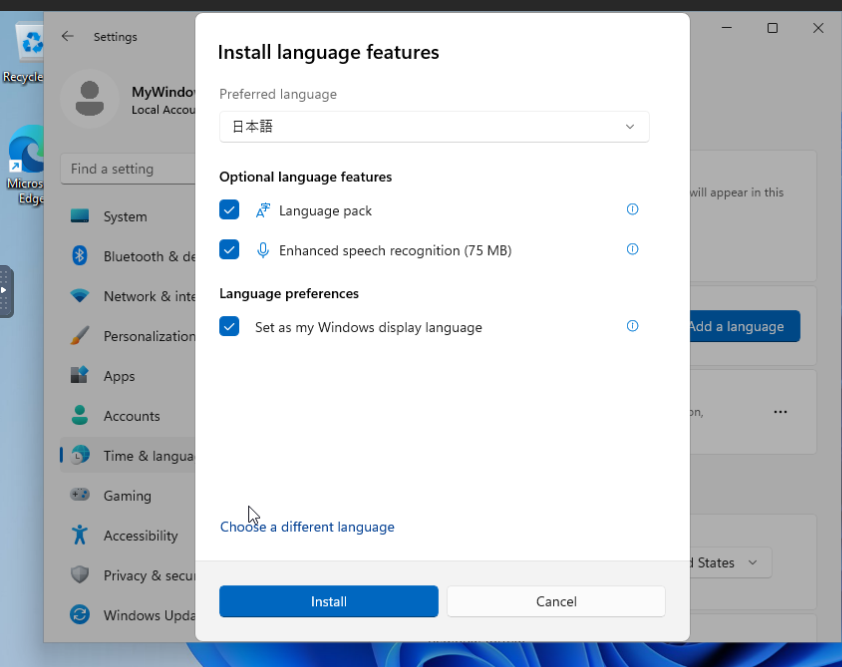
- 日本語化しておきます
- 後ほどライセンス購入し認証しておきます
Step 2: Install Dependencies
パッケージリスト更新
sudo apt update
依存関係インストール
sudo apt install -y curl dialog freerdp3-x11 git iproute2 libnotify-bin netcat-openbsd
Step 3: Create a WinApps Configuration File
vi winapps.conf##################################
# WINAPPS CONFIGURATION FILE #
##################################
# INSTRUCTIONS
# - Leading and trailing whitespace are ignored.
# - Empty lines are ignored.
# - Lines starting with '#' are ignored.
# - All characters following a '#' are ignored.
# [WINDOWS USERNAME]
RDP_USER="MyWindowsUser"
# [WINDOWS PASSWORD]
# NOTES:
# - If using FreeRDP v3.9.0 or greater, you *have* to set a password
RDP_PASS="MyWindowsPassword"
# [WINDOWS DOMAIN]
# DEFAULT VALUE: '' (BLANK)
RDP_DOMAIN=""
# [WINDOWS IPV4 ADDRESS]
# NOTES:
# - If using 'libvirt', 'RDP_IP' will be determined by WinApps at runtime if left unspecified.
# DEFAULT VALUE:
# - 'docker': '127.0.0.1'
# - 'podman': '127.0.0.1'
# - 'libvirt': '' (BLANK)
RDP_IP="127.0.0.1"
# [VM NAME]
# NOTES:
# - Only applicable when using 'libvirt'
# - The libvirt VM name must match so that WinApps can determine VM IP, start the VM, etc.
# DEFAULT VALUE: 'RDPWindows'
VM_NAME="RDPWindows"
# [WINAPPS BACKEND]
# DEFAULT VALUE: 'docker'
# VALID VALUES:
# - 'docker'
# - 'podman'
# - 'libvirt'
# - 'manual'
WAFLAVOR="docker"
# [DISPLAY SCALING FACTOR]
# NOTES:
# - If an unsupported value is specified, a warning will be displayed.
# - If an unsupported value is specified, WinApps will use the closest supported value.
# DEFAULT VALUE: '100'
# VALID VALUES:
# - '100'
# - '140'
# - '180'
RDP_SCALE="100"
# [MOUNTING REMOVABLE PATHS FOR FILES]
# NOTES:
# - By default, `udisks` (which you most likely have installed) uses /run/media for mounting removable devices.
# This improves compatibility with most desktop environments (DEs).
# ATTENTION: The Filesystem Hierarchy Standard (FHS) recommends /media instead. Verify your system's configuration.
# - To manually mount devices, you may optionally use /mnt.
# REFERRENCE: https://wiki.archlinux.org/title/Udisks#Mount_to_/media
REMOVABLE_MEDIA="/run/media"
# [ADDITIONAL FREERDP FLAGS & ARGUMENTS]
# NOTES:
# - You can try adding /network:lan to these flags in order to increase performance, however, some users have faced issues with this.
# DEFAULT VALUE: '/cert:tofu /sound /microphone +home-drive'
# VALID VALUES: See https://github.com/awakecoding/FreeRDP-Manuals/blob/master/User/FreeRDP-User-Manual.markdown
RDP_FLAGS="/cert:tofu /sound /microphone +home-drive"
# [DEBUG WINAPPS]
# NOTES:
# - Creates and appends to ~/.local/share/winapps/winapps.log when running WinApps.
# DEFAULT VALUE: 'true'
# VALID VALUES:
# - 'true'
# - 'false'
DEBUG="true"
# [AUTOMATICALLY PAUSE WINDOWS]
# NOTES:
# - This is currently INCOMPATIBLE with 'docker' and 'manual'.
# - See https://github.com/dockur/windows/issues/674
# DEFAULT VALUE: 'off'
# VALID VALUES:
# - 'on'
# - 'off'
AUTOPAUSE="off"
# [AUTOMATICALLY PAUSE WINDOWS TIMEOUT]
# NOTES:
# - This setting determines the duration of inactivity to tolerate before Windows is automatically paused.
# - This setting is ignored if 'AUTOPAUSE' is set to 'off'.
# - The value must be specified in seconds (to the nearest 10 seconds e.g., '30', '40', '50', etc.).
# - For RemoteApp RDP sessions, there is a mandatory 20-second delay, so the minimum value that can be specified here is '20'.
# - Source: https://techcommunity.microsoft.com/t5/security-compliance-and-identity/terminal-services-remoteapp-8482-session-termination-logic/ba-p/246566
# DEFAULT VALUE: '300'
# VALID VALUES: >=20
AUTOPAUSE_TIME="300"
# [FREERDP COMMAND]
# NOTES:
# - WinApps will attempt to automatically detect the correct command to use for your system.
# DEFAULT VALUE: '' (BLANK)
# VALID VALUES: The command required to run FreeRDPv3 on your system (e.g., 'xfreerdp', 'xfreerdp3', etc.).
FREERDP_COMMAND=""
# [TIMEOUTS]
# NOTES:
# - These settings control various timeout durations within the WinApps setup.
# - Increasing the timeouts is only necessary if the corresponding errors occur.
# - Ensure you have followed all the Troubleshooting Tips in the error message first.
# PORT CHECK
# - The maximum time (in seconds) to wait when checking if the RDP port on Windows is open.
# - Corresponding error: "NETWORK CONFIGURATION ERROR" (exit status 13).
# DEFAULT VALUE: '5'
PORT_TIMEOUT="5"
# RDP CONNECTION TEST
# - The maximum time (in seconds) to wait when testing the initial RDP connection to Windows.
# - Corresponding error: "REMOTE DESKTOP PROTOCOL FAILURE" (exit status 14).
# DEFAULT VALUE: '30'
RDP_TIMEOUT="30"
# APPLICATION SCAN
# - The maximum time (in seconds) to wait for the script that scans for installed applications on Windows to complete.
# - Corresponding error: "APPLICATION QUERY FAILURE" (exit status 15).
# DEFAULT VALUE: '60'
APP_SCAN_TIMEOUT="60"キーボードが打てなくなったので変更
シャットダウン後
diff winapps.conf{,.org}
73c73
< RDP_FLAGS="/cert:tofu /sound /microphone +home-drive /kbd:layout:0xE0010411"
---
> RDP_FLAGS="/cert:tofu /sound /microphone +home-drive"
ocarina@ocarina-AB350-Pro4:~/MEGA/work/winapps$ docker compose up -d
[+] Running 1/1
 ✔ Container WinApps  Started                                                                                                                                        0.4s
Step 4: Test FreeRDP
先程dockerで起動させたwindowsマシンにログインしてみる
- /u 実際のwindowsアカウント
- /p 実際のwindowsパスワード
- /u 実際のマシンのIPアドレス
xfreerdp3 /u:MyWindowsUser /p:MyWindowsPassword /v:127.0.0.1 /cert:tofusetup.shを再度やるときも上で証明書を再認証?します
Step 5: Run the WinApps Installer
ln -s ~/work/winapps ~/.config/winappssudoするとwinappsのconfフォルダがrootを指定してしまうので一般ユーザーでdockerを利用可能にします。
sudo chgrp -a -G docker linuxユーザー名
newgrp docker
bash setup.sh - Install
- Current User
- Manual
以降のセットアップはデフォルトを選択しました。 official applicationsなど
sudo docker compose --file ./compose.yaml uphttp://127.0.0.1:8006
LINEをubuntuで
作ったwindows上でLINEインストール https://desktop.line-scdn.net/win/new/LineInst.exe
ubuntuに戻って、
vi ~/.local/share/applications/line.desktop[Desktop Entry]
Name=LINE
Comment=LINE for Windows
Exec=/home/ocarina/.local/bin/winapps-src/bin/winapps manual "C:\\Users\\MyWindowsUser\\AppData\\Local\\LINE\\bin\\LineLauncher.exe"
#Path=/home/ocarina/work/winapps/bin
Icon=/home/ocarina/.local/share/icons/line.png
Terminal=false
Type=Application
Categories=Network;InstantMessaging;
StartupWMClass=linecp ~/.local/share/applications/line.desktop ~/デスクトップ/.ウインドウが出てこないときもあるのでその場合はメモ帳とか開いてあげるといい
cp -ip /home/ocarina/.local/share/applications/mspaint.desktop ~/デスクトップ/.検索に表示されるように反映
update-desktop-database ~/.local/share/applications/LINE,KindleCreate普段使いしています。

ocarina
絵が描けるボタン恐怖症インフラエンジニアです。